Keyboard
GDevelop gives access to all inputs made on the keyboard. This includes conditions to check if a key was pressed or released.
Note
Keyboard conditions don't work with the on-screen keyboard on touch devices. For mobile or touch-screen games, use mouse/touch conditions instead (or display a virtual keyboard with a Text Input object).
Key pressed vs. Key just pressed
There are two distinct conditions to detect a key press, and choosing the right one matters:
- Key pressed: stays true every frame the key is held down. Use it for continuous actions, like moving a character while an arrow is held.
- Key just pressed: only true on the single frame the key starts being pressed. Use it for one-shot actions, like firing a bullet, jumping, or toggling a menu — this prevents the action from triggering repeatedly while the key is held.
A similar Key released condition is true on the frame the key is released.
Any key pressed / Any key released
These conditions are true on the frame any key on the keyboard starts being pressed or is released. They're useful for "Press any key to continue" screens.
Last pressed key
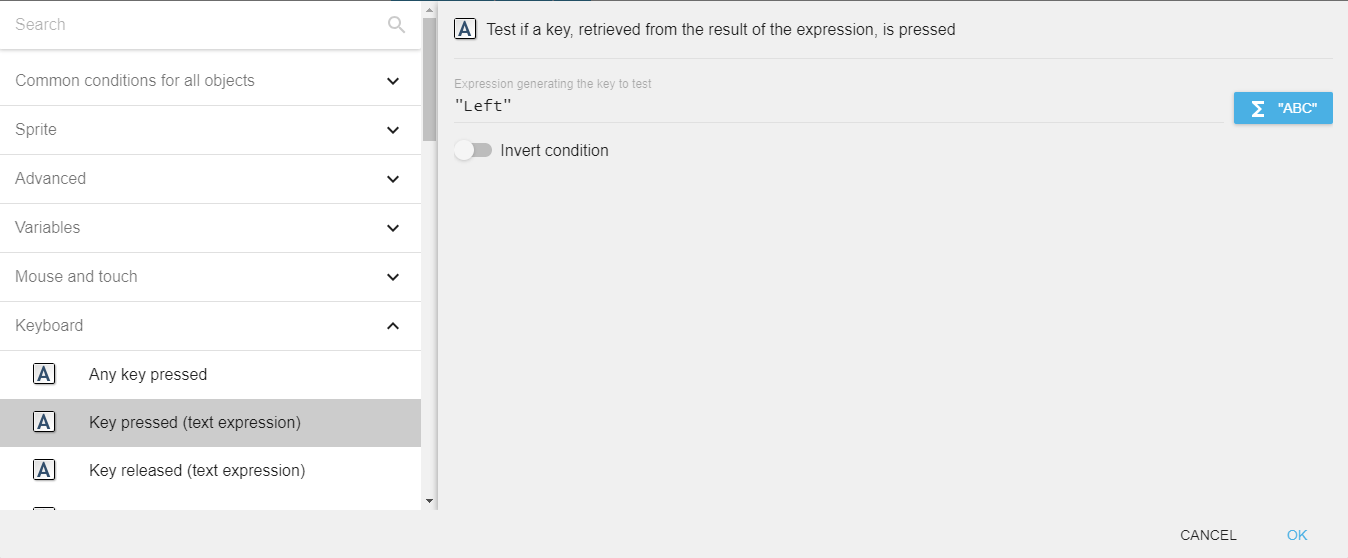
The LastPressedKey() expression returns the name of the most recently pressed key as text. This is convenient for building a key-rebinding screen: ask the player to press a key, then store LastPressedKey() in a variable to use later in a "Key pressed (text expression)" condition.
Valid key names
When using the text-expression variants of the conditions (or comparing against LastPressedKey()), the key name must be written exactly — names are case-sensitive:
- Letters:
atoz(lowercase). - Top-row digits:
Num0toNum9. Numpad digits:Numpad0toNumpad9. - Arrows:
Left,Right,Up,Down(numpad arrows:NumpadLeft,NumpadRight,NumpadUp,NumpadDown). - Function keys:
F1toF12. - Modifiers:
LShift,RShift,LControl,RControl,LAlt,RAlt,LSystem,RSystem(the system/meta key, like Windows or Command). - Common keys:
Space,Return,Tab,Back(backspace),Escape,Delete,Insert,Home,End,PageUp,PageDown,Pause,Menu. - Punctuation:
SemiColon,Comma,Period,Quote,Slash,BackSlash,Equal,Dash,LBracket,RBracket,Tilde. - Numpad operators:
Add,Subtract,Multiply,Divide(also available asNumpadAdd,NumpadSubtract,NumpadMultiply,NumpadDivide,NumpadReturn, etc.).
Danger
Always surround the key name with quotes in the expression field, e.g. "Left", not Left.
Reference
All actions, conditions and expressions are listed in the keyboard reference page.